Remove Image Background
Remove the background from any PNG or JPEG and download your subject as a transparent PNG cutout, usually in seconds. Keep this page open — the result appears here next to the original for you to compare and download.
Remove image background examples
Drag the slider to compare the original and result


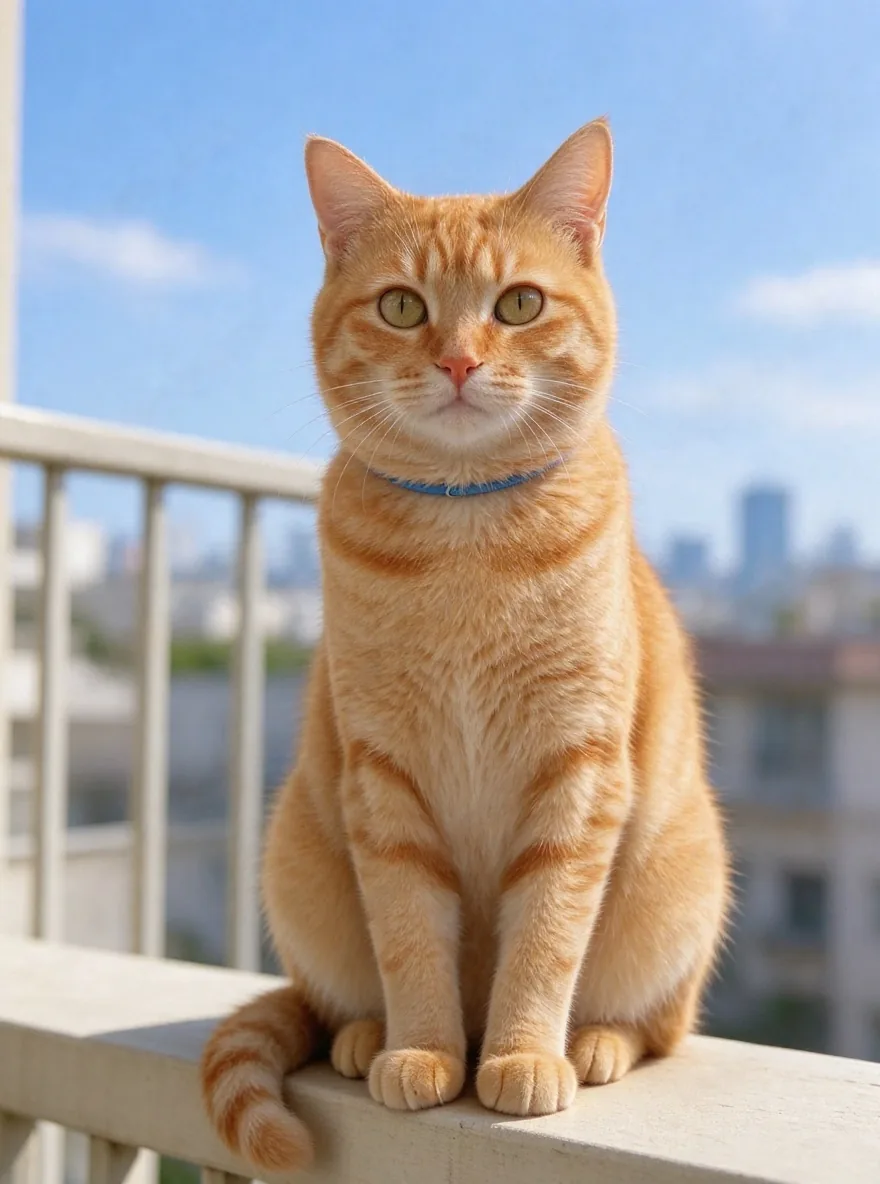
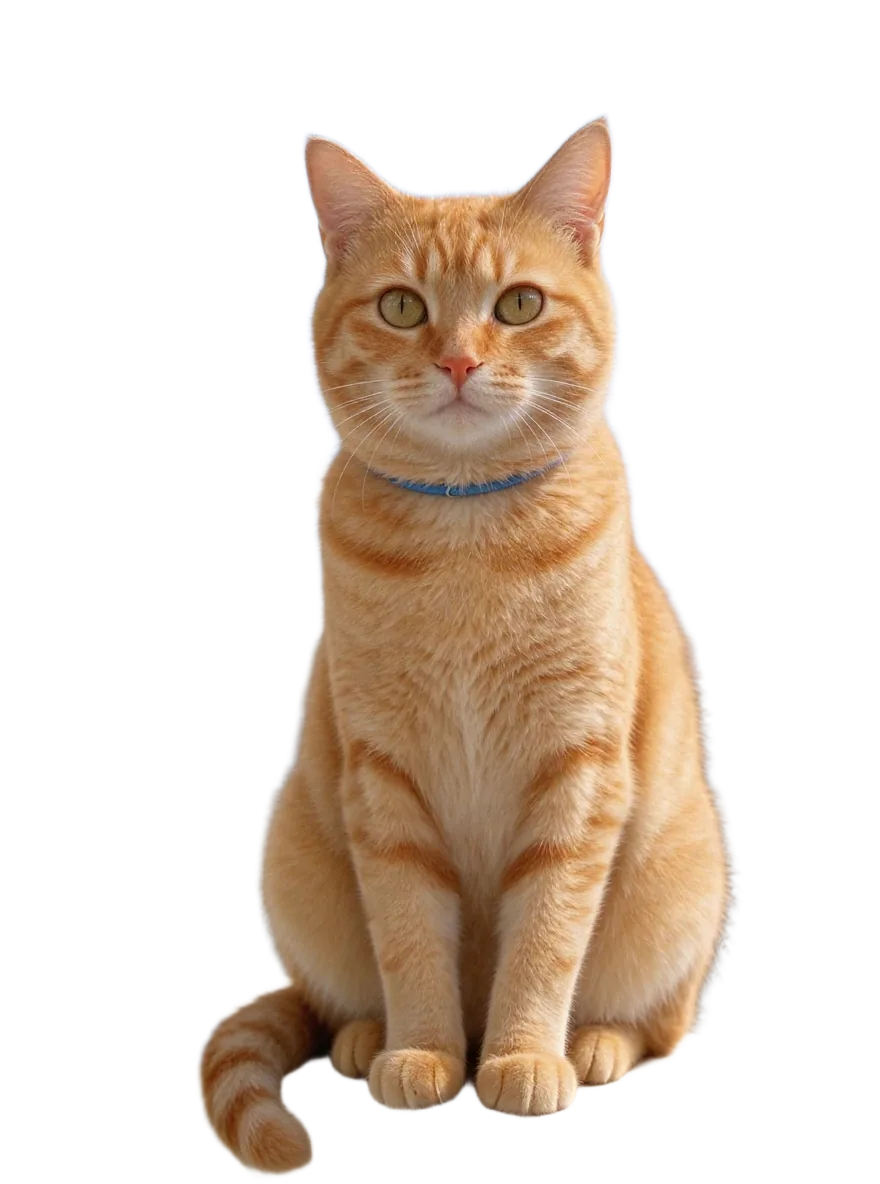
What does it mean to remove an image background?
Removing an image background means separating the main subject of a photo from everything behind it, and returning a PNG with a transparent background in place of the scene. The cutout drops straight into designs, product pages, presentations or composites without manual masking — no lasso, no layer masks, no edge-by-edge tracing.
An AI background remover does the segmentation automatically. The model finds the subject, estimates its outline — including soft edges like hair and fur — and keeps the original pixels inside the cutout, so faces, textures and colors stay exactly as photographed. What you download is a transparent PNG: the same photo, minus the background, ready for any new backdrop you place behind it.
A background remover answers “give me the subject only”. If you need every element of an image back as separate, named layers — subject, text, decorations and a rebuilt background — that is what the Magic Layers workspace does instead. The two tools share the same account, credits and quality of output; choosing between them is just a matter of what you need back.
- Input
- One PNG or JPEG up to 10 MB
- Output
- One transparent PNG per task
- Subjects
- Products, people, animals, objects
- Cost
- 10 credits per image
How to remove image background in three steps
- 01
Upload your photo
Sign in and drop a PNG or JPEG. Pictures larger than the limit are resized automatically in your browser, and nothing is sent anywhere until you start the task.
- 02
Start the task
Starting charges 10 credits and submits the image to the AI service. Keep the page open — a background cutout usually finishes in seconds, and the status updates live.
- 03
Compare and download
Check the cutout next to the original on the transparency grid, then download the transparent PNG right away — results are temporary and are not archived in a history. Failed tasks are refunded automatically.
Why remove image background
Three situations where a transparent PNG cutout pays for itself — and one pass is usually all it takes to remove image background clutter from the frame.
Product pages and marketplaces
Consistent white or themed backgrounds sell. Remove the background from one packshot and drop the product onto your store template — no reshooting, no per-image masking, and the transparent PNG keeps fine edges like stems and straps.
Design and compositing
Posters, ads and social graphics all start with a clean subject. A cutout layers over any backdrop, texture or gradient you place behind it, so one photo feeds many finished designs without masking work.
Presentations, docs and profiles
Team pages, pitch decks and directories look tidier without cluttered offices behind every face. One pass per photo gives you uniform transparent PNGs your template can place on brand colors.
When a finished design needs to come apart into editable pieces instead, the Magic Layers workspace is the companion tool: it separates every element of an image into named layers you can move and restyle.
Tips for cleaner background removal
These tips make it easier to remove image background cleanly on the first try — each one gives the model a clearer decision to make.
Give the subject contrast. A subject that stands out from the background — different brightness or color — gets a cleaner edge than one that blends into it; a plain wall beats a busy street.
Shoot or pick single-subject frames. One clear subject produces the best transparent PNG; when several objects overlap, the model keeps the group and edges get more approximate.
Let soft edges stay soft. Hair, fur and fabric fuzz are estimated, not traced — check them at full size and do a quick brush-up in your editor if a strand or two needs help.
Match the cutout to its destination. Because the background becomes fully transparent, place the subject over similar tones to the original when a perfect blend matters.
Remove image background FAQ
How do I remove an image background?
Upload a PNG or JPEG and start the task. An AI model detects the main subject, cuts it out and returns a transparent PNG, usually in seconds. Preview the before/after comparison on the page, then download the cutout. Edges are an approximation — hair, fur and very fine detail can need a quick cleanup in an editor.
What do I get after removing the background?
A single PNG image with an alpha channel: your subject on a transparent background, at the resolution of the processed image. Download it for design tools, presentations, product pages or compositing. If you need every element of an image separated into layers instead of one cutout, use the main Magic Layers workspace.
How much does it cost to remove an image background?
10 credits per image, charged when the task starts. Failed or timed-out tasks are refunded automatically, so you only pay for results. You can follow every charge and refund in your credit history.
Does the background remover work on products, people and animals?
Yes. Single subjects with a clear silhouette — product packshots, portraits, pets, logos and objects — give the cleanest transparent PNG cutouts. Busy scenes, overlapping subjects, glass or hair-thin edges are harder: the model still cuts them out, but edges may need a quick cleanup in an editor before you publish the result.
Can I remove an image background on my phone?
Yes. The background remover runs in your mobile browser: upload a photo from your camera roll, keep the page open while it processes, then download the transparent PNG straight to your device. Nothing is installed, and large photos are resized automatically before they are sent.
Which images work best for background removal?
One PNG or JPEG per task, up to 10 MB and 4096 × 4096 total pixels, with at least 512 × 512 total pixels; larger images are resized automatically before upload. Subjects with clear silhouettes and good contrast against the background give the cleanest cutouts.
What happens to my images and results?
The image is sent to a third-party AI provider to perform the processing. Results are not saved to a task history: the transparent cutout stays available for download from the task page for a limited time, so download it as soon as it finishes. The uploaded file expires automatically after 7 days.
Related tools
Processing and privacy
Tasks run on a third-party AI provider (WaveSpeed). Results are temporary: download them from the task page when the task finishes — they are not added to a history. Uploads expire automatically after 7 days. Updated .